
IPTV buffering is the most common complaint about internet television, and also one of the easiest to solve. You see a turning wheel, the picture freezes for a second, or the sound continues while the image stops. Almost always, the cause is somewhere between your modem and your screen, not on the server.
This article shows how to find the cause quickly and lists nine fixes, starting with the ones that take ten seconds.
What causes IPTV buffering?
An IPTV app keeps a small reserve of video, the buffer. As long as data arrives faster than the picture plays, you see nothing special. When the data arrives too slowly, the reserve empties and the app has to wait: that is buffering.
The data can arrive too slowly for four reasons:
- Weak Wi-Fi between the router and the device. The most frequent cause by far.
- A busy connection: other devices downloading, uploading or streaming at the same time.
- A slow or overloaded device: an old stick, a full memory or an app that has been open for days.
- A route problem on the internet between your provider and the server, often in the evening.
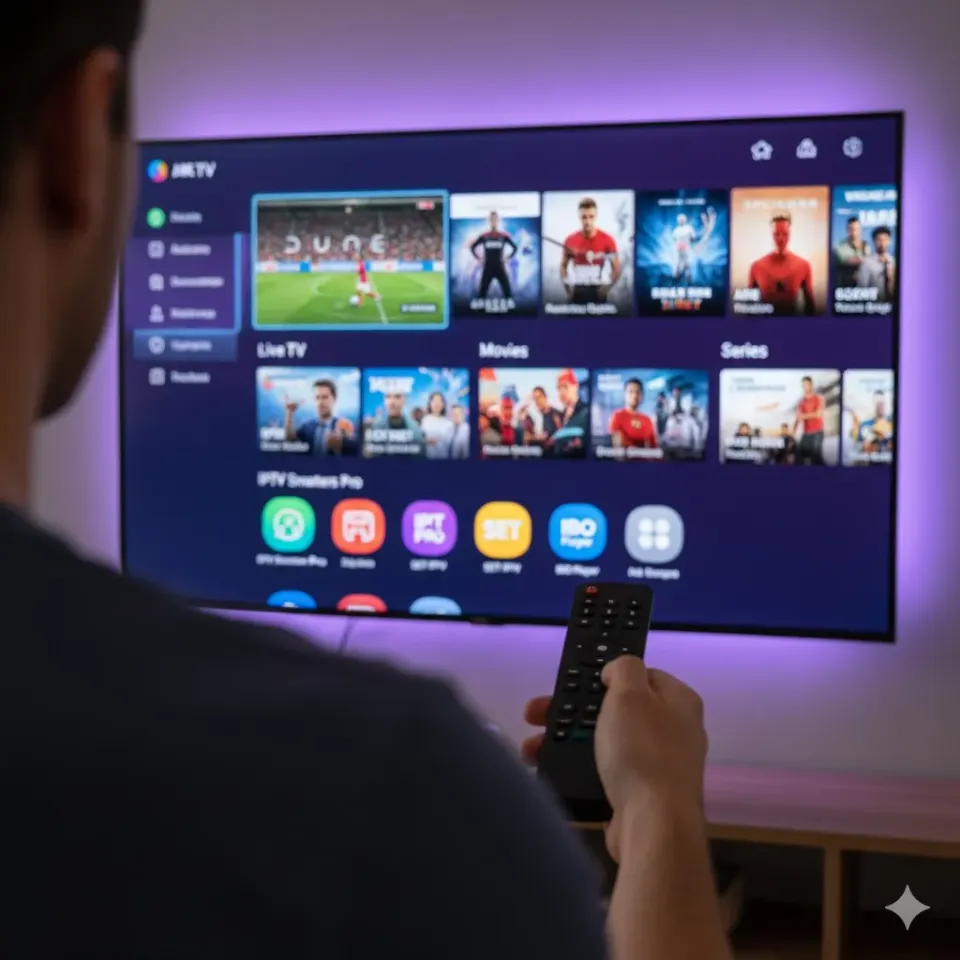
Find the cause in two minutes
- Run a speed test on the device itself, for example with fast.com in its browser or a speed test app. Compare the result with 25 Mbps for HD and 50 Mbps for 4K.
- Open the same channel on your phone, close to the router. If it plays smoothly there, the problem is the Wi-Fi to the television.
- Try another channel and a film. If only one channel buffers, that stream may be busy; if everything buffers, the cause is in your home.
Nine fixes for IPTV buffering
1. Restart the app and the device
It sounds too simple, but streaming sticks rarely switch off completely. A full restart (unplug for ten seconds) clears the memory and solves a surprising number of cases.
2. Lower the quality
Many channels exist in several qualities. If the 4K version buffers, the Full HD one usually plays perfectly. On a 55-inch television the difference is smaller than you would expect.
3. Use an Ethernet cable
The single most effective fix. A cable between the router and the television, box or Android TV player removes the Wi-Fi from the equation. For a Fire TV Stick, an Ethernet adapter costs little and fits in the USB power cable.
4. Improve the Wi-Fi
If a cable is not possible, move the router to a more central and higher place, away from the television cabinet and metal objects. Use the 5 GHz network for the television. In larger homes, a mesh system or powerline adapters bring the signal closer to the screen.
5. Pause other heavy traffic
Game consoles, computer updates and cloud backups can take the whole connection for a while. Pause them during a match, or schedule them at night.
6. Clear the app cache
On Android TV and Fire TV, go to Settings › Applications › your IPTV app › Clear cache. Do not clear the data, or you will need to log in again. Our IPTV setup guide shows where your login fields are if you do.
7. Change the player settings
Apps such as IPTV Smarters Pro and TiviMate let you choose between several video players and buffer sizes. Switching the player, or choosing a larger buffer, often helps on older devices. The IPTV apps page explains the main options per app.
8. Change the DNS server
The DNS is the internet's address book. The one of your provider is sometimes slow in the evening. Setting a public DNS such as Cloudflare 1.1.1.1 in your router or device settings can speed up the start of streams.
9. Replace an old device
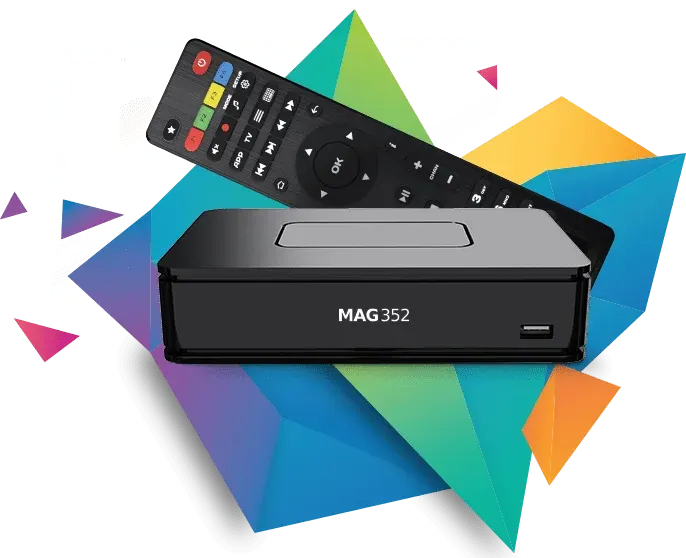
A stick that is five years old was not built for today's 4K streams. If buffering only happens on one device and everything else is fine, a newer Fire TV Stick 4K or Android TV player is a worthwhile upgrade. Compare them on the IPTV devices page.
What about a VPN?
A VPN sends your traffic through another server. In some cases it bypasses a slow route of your provider and reduces buffering; in others it adds a detour and makes things worse. Try it only after the fixes above, and choose a server close to Belgium.
Quick checklist before a big match
- Device restarted in the afternoon.
- Cable connected, or 5 GHz Wi-Fi with a good signal.
- Downloads and updates paused.
- Match opened five minutes before kick-off, with a Full HD backup in mind.
More match-night tips are on the IPTV sport page.
Contact
Still buffering? We help on WhatsApp
If you have tried these steps and the picture still freezes, send us a message with your device, your app and the result of a speed test on that device. We look at it with you and, if needed, adjust the stream settings on our side.
IPTV freezing versus IPTV stuttering
Not every picture problem is the same, and the right fix for IPTV buffering depends on what you see.
- IPTV freezing: the image stops completely for several seconds, often with a turning wheel. This is classic buffering: the data does not arrive fast enough. Start with fixes 2, 3 and 4.
- IPTV stuttering: the image keeps moving but jerks, as if frames are missing. This often points to a device that is too slow to decode the stream. Try fixes 1, 7 and 9.
- IPTV loading for a long time before a channel starts: usually a DNS or a route issue. Fix 8 is the most likely solution.
- Sound without picture or picture without sound: rarely buffering. Change the video player in the app settings.
IPTV buffering on Wi-Fi: a closer look
Because Wi-Fi is the main cause of IPTV buffering, it deserves a little more attention. A Wi-Fi signal loses strength with every wall, especially concrete and walls with pipes or radiators. A television placed in a cabinet, behind a soundbar, or against an outside wall often receives only half of the signal that a phone gets in the middle of the room.
You can check the signal strength in the network settings of most televisions and sticks. If it shows one or two bars, IPTV buffering is almost guaranteed during busy moments. Moving the router one metre, or adding a mesh point in the living room, can change everything.
The 2.4 GHz band reaches further but is slower and crowded by neighbours. The 5 GHz band is faster but weaker through walls. For a television in the same room as the router, 5 GHz is the best choice; for a television two rooms away, a cable or powerline adapter is more reliable than either band.
Is IPTV buffering ever on the server side?
Sometimes, yes, and we prefer to be honest about it. During very large events, a particular stream can be busy. In that case, other channels play normally while one stutters. The quickest solution is to switch to another quality of the same channel. If you notice this, tell us on WhatsApp: it helps us balance the load.
When everything buffers at the same time, on every channel and in every quality, the cause is almost always local. That is good news: local causes are the ones you can fix yourself in a few minutes.
Preventing IPTV buffering from the start
The easiest IPTV buffering is the one that never happens. When you choose a device, prefer one with a network port or support for an Ethernet adapter. Place it close to the router if you can. Keep the app updated and restart the device once a week. With these habits, most households never think about buffering again.
Questions
Frequently asked questions
Why does IPTV buffer only in the evening?
In the evening more people use the internet, both at home and in your neighbourhood. A cable, a lower quality and a different DNS usually help.
Is my internet fast enough for IPTV?
Measure on the device itself. About 25 Mbps for HD and 50 Mbps for 4K per screen give a comfortable margin.
Does an Ethernet cable really help?
Yes. It is the most effective fix for buffering because it removes Wi-Fi interference completely.
Should I use a VPN against buffering?
Only as a last test. A VPN can help when your provider has a slow route, but it can also slow things down.