
IPTV setup sounds technical, but it comes down to two things: an app and a login. If you have ever installed a streaming app and typed a password with a remote control, you already know how to do it. Most people are watching within ten minutes.
What you need before you start
- A device with an app store or a browser: Smart TV, Fire TV Stick, Android TV box, phone, tablet or computer.
- An internet connection of roughly 10 Mbps for HD or 25 Mbps for 4K.
- Your login details, sent by us on WhatsApp: a server address, a username and a password. Together these are called Xtream Codes. Some apps use a single M3U link instead.
IPTV setup in five steps
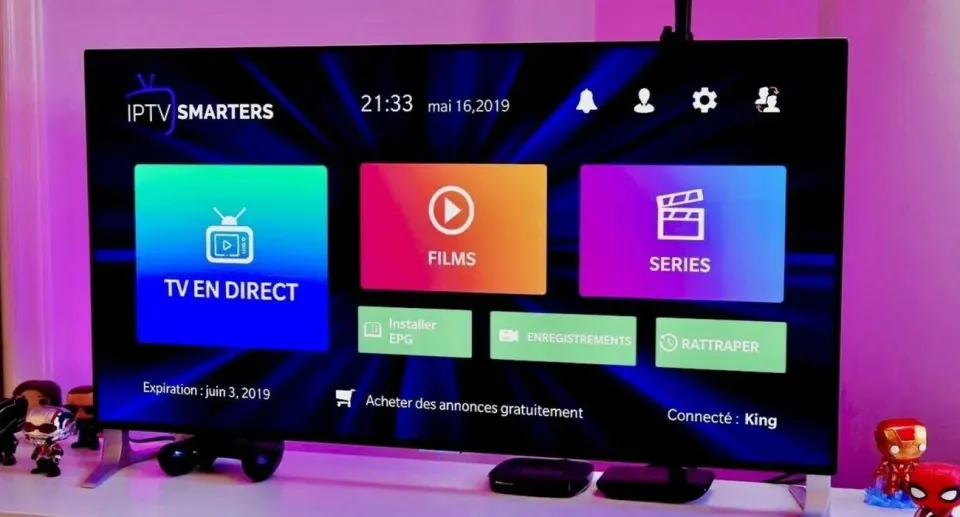
- Install a player app. Open the app store on your device and search for the app we recommended for it, for example IPTV Smarters Pro or TiviMate.
- Choose the login method. When the app asks how you want to add a playlist, choose Xtream Codes if it is offered. It loads faster than an M3U link and brings the TV guide along.
- Enter your details. Type the server address, username and password exactly as you received them. Capital letters matter.
- Wait for the first load. The app fetches the channels, films and series. This takes up to a minute the first time.
- Pick a channel and watch. Add your regular channels to favourites so you find them in two clicks next time.
Xtream Codes or M3U: which one?
Both lead to the same content. Xtream Codes are three short fields and are the easier option on a television, where typing is slow. An M3U link is one long address that contains your username and password; it is handy for players that do not support Xtream Codes, such as VLC on a computer. If your app accepts both, take Xtream Codes.
IPTV setup per device
Samsung and LG Smart TV
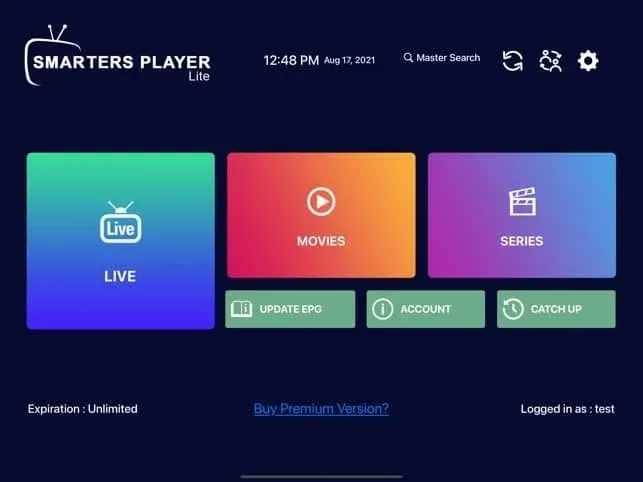
Open the app store of the television and install a player such as IBO Player or Smarters Player Lite. Some television apps identify your set by a device code shown on screen and ask you to add the playlist on the developer's website. Send us that code and we tell you what to do with it.
Fire TV Stick
Search the Amazon Appstore first. If the player you want is not listed there, it can be installed with the Downloader app, using the address from the developer's own website. Use the short HDMI extension from the box so the stick does not sit directly behind the screen: it improves Wi-Fi reception.
Android TV and Google TV
These devices have the Google Play Store, so installing a player is a matter of searching and clicking. If your box has a network port, plug in a cable.
Phone and tablet
Install the player from Google Play or the App Store. Copying and pasting your login from WhatsApp avoids typing mistakes.
Windows and Mac
IPTV Smarters Pro exists for both. For a quick check, VLC media player opens an M3U link through Media › Open Network Stream.
More about choosing hardware is on the IPTV devices page, and the players are compared on the IPTV apps page.
Settings worth changing after setup
- Favourites. Ten channels in a favourites list beat scrolling through thousands.
- Hidden groups. Most apps let you hide categories you never use, which also speeds up loading.
- TV guide range. Two or three days of guide data are enough on devices with little storage.
- Time zone. If programme times are an hour off, set the device to Brussels time.
- Parental PIN. Lock the categories that are not meant for children.
Internet speed
When IPTV setup goes wrong
"Invalid login" or "account expired". Nine times out of ten it is a typing error: a capital letter, a space at the end, a zero instead of the letter O. Copy the details again from WhatsApp.
The channels load but nothing plays. Check the internet on the device itself by opening another streaming app. Then restart the app.
The picture stops every few minutes. This is nearly always the home network. Move to 5 GHz Wi-Fi or use a cable, and restart the modem.
No sound. Switch the audio track in the player, or set the device's audio output to stereo.
The app is not in my store. Tell us the exact model of your device. There is almost always an alternative player.
HD / Full HDabout 10 Mbps
4K Ultra HDabout 25 Mbps
A network cable or 5 GHz Wi-Fi gives the steadiest picture.
IPTV setup on a second device
Once the first device works, the second takes two minutes. Install the app, choose Xtream Codes and enter the same three fields. A second IPTV setup on a phone or tablet is worth doing even if you never plan to watch there: it is your spare screen on the evening the television decides to install an update. Remember that the service plays on one screen at a time, so close the app on one device before starting it on the other.
Keeping your IPTV setup healthy
A setup that worked on day one keeps working if you do three small things: let the app update when it asks, restart the device once in a while instead of leaving it on standby for months, and refresh the playlist from the app's settings if a category looks incomplete.
Prefer to do it together?
You do not have to work it out alone. Send us a photo of the screen where you are stuck, and we tell you which button comes next. That help is part of every plan, and of the free trial as well.
Questions
Questions about setup
How long does IPTV setup take?
Usually five to ten minutes: installing the app, entering three login fields and waiting for the first load.
Which app should I install?
It depends on the device. We recommend one when you order or ask for the trial. An overview is on the IPTV apps page.
What are Xtream Codes?
A login made of a server address, a username and a password. Most player apps accept it and load the TV guide automatically.
Can I set it up on several devices?
Yes. Use the same login on each device. You watch on one screen at a time.
Do I need a VPN?
No, a VPN is not required for the service to work. If you use one, it can lower your speed.
Can you install it for me?
We guide you step by step on WhatsApp. Send a photo of your screen and we tell you what to do next.